2. CropMStudio installation
There are three methods to run CropMStudio, Binder, local install with conda and with Docker container. Each of which is described below. We recommend using the MyBinder method as it does not require any local installation, but if you have difficulty opening the MyBinder instance, one of the other methods may be preferable.
Reguardless of the installation method, you will need a browser to access the environment that launch CropMStudio. MyBinder fully supports Mozilla Firefox, Google Chrome. It may work with Microsoft Edge (or Internet Explorer), but these are not guaranteed.
2.1. MyBinder
MyBinder is a free public service that allows users to run Jupyter notebooks on remote compute resources via BinderHub. This method is the most straight forward as it does not require you to install anything on your machine other than a browser.
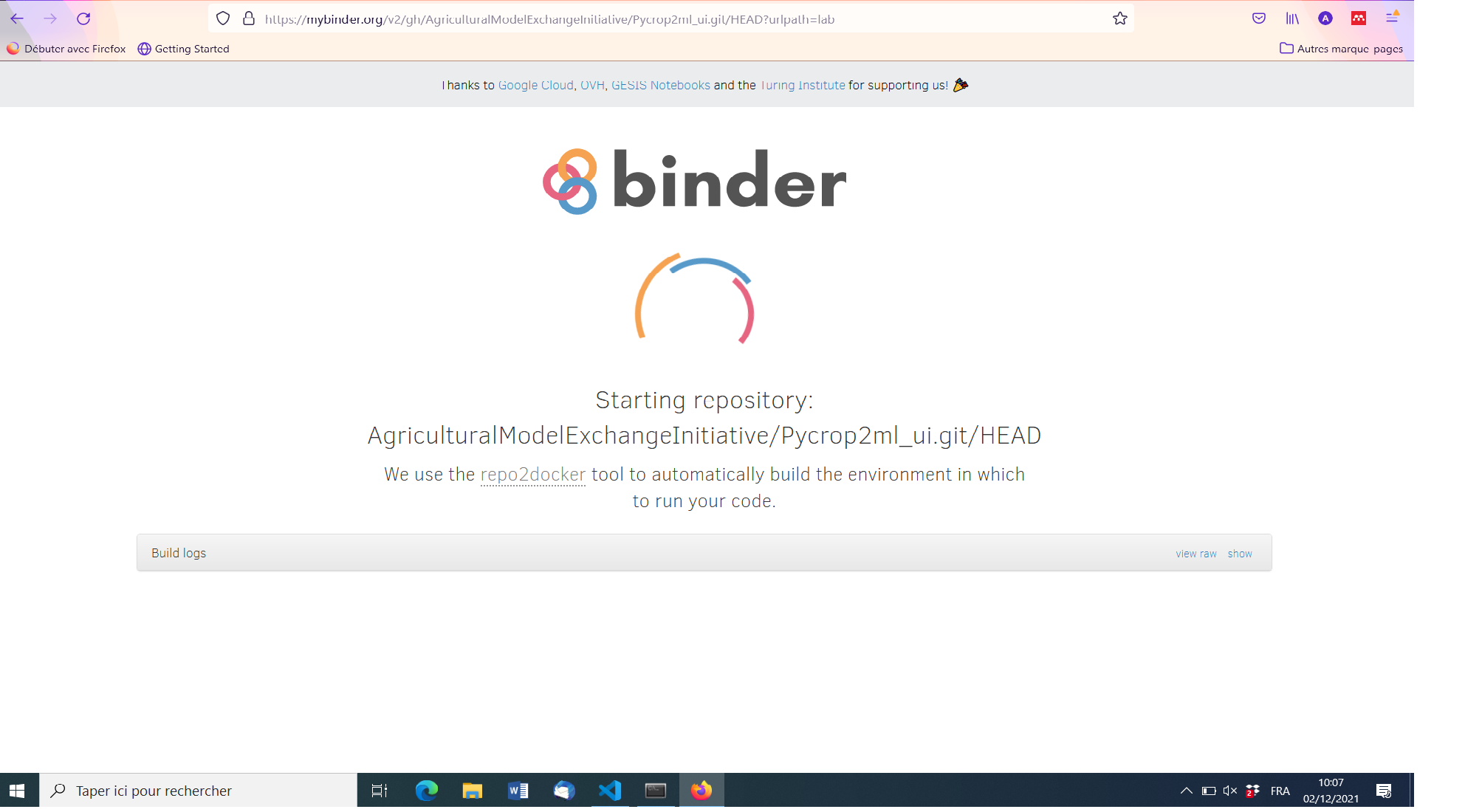
Open this link or click the
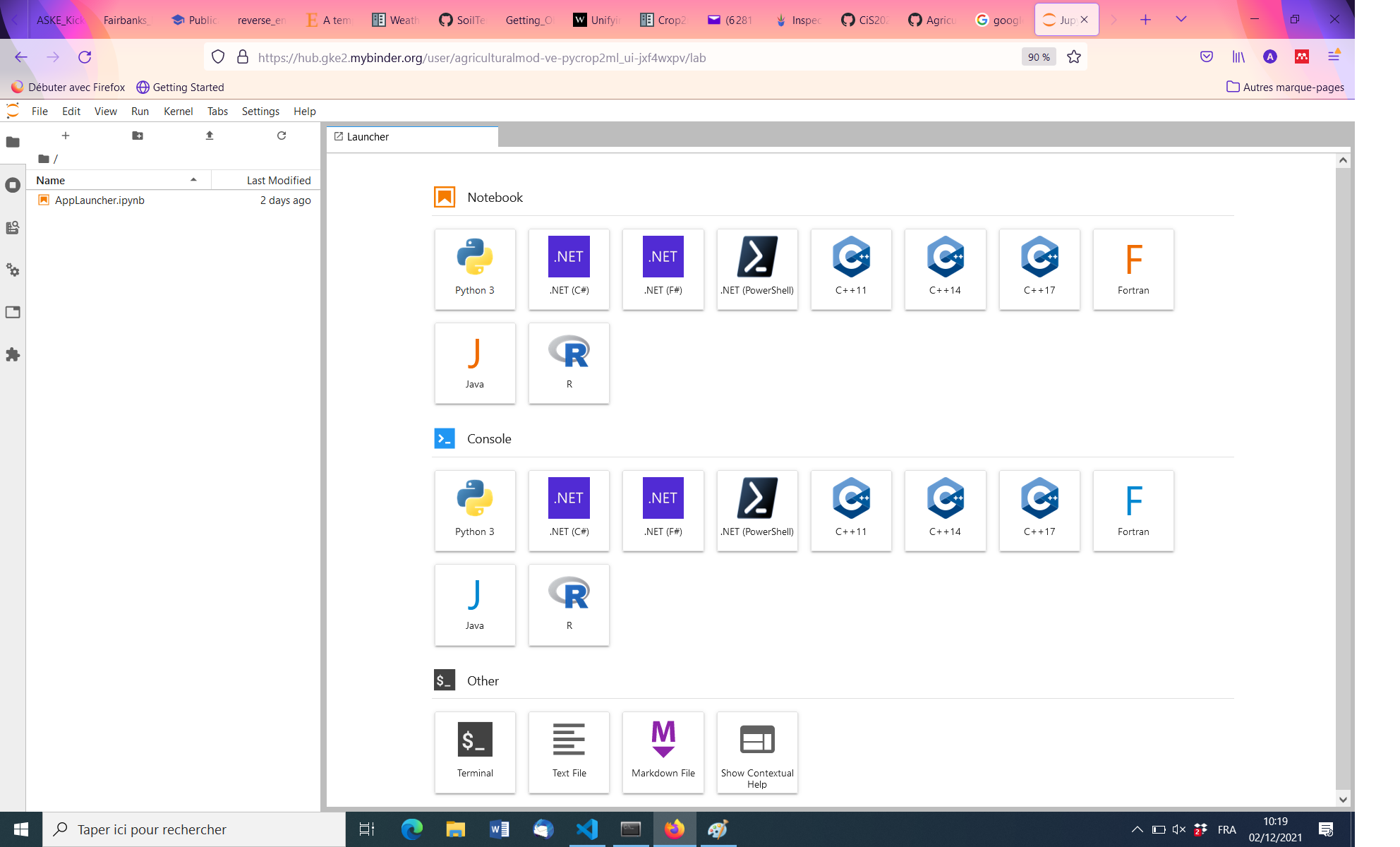
launch binderbutton in the README for the CropMStudio repository.Wait for the binder instance to launch. This can take update a few minutes if the repository has been updated recently. When the instance is running, you should see a file browser like below. So, it is useful to launch at least once before the workshop
Note
Changes you make in your environment are only present on the specific instance that you are interacting with and will disappear when the instance shutdowns. If you want to keep any changes you make, you will need to download your results. You can then upload it to future instances.
2.2. Local Install with conda
This installation method is the most involved, but once it is complete, you will have a local conda environment with CropMStudio and PyCrop2ML installed that can be used in the future. This approach will allow to contribute to the implementations of the tools if you install them in “develop” mode.
Please click Here to access to this installation procedure.
2.3. Install with Docker Container
A Docker container image is a lightweight, standalone, executable package of software that includes everything needed to run an application: code, runtime, etc. Docker containers allow developer to package the entire stack (operating system, dependencies, scripts, data) required to run projects in a contained environment. In this case, we are using the container to run CropMStudio so you don’t have to install the dependencies on your machine which can encounter issues on untested releases and/or combinations of operating systems and/or dependencies.
Download and install docker from here.
Pull the workshop image from docker hub:
docker pull cyrilleahmed/cropmstudio
Start a container from the CropMStudio image by running the command below:
docker run -p8888:8888 cyrilleahmed/cropmstudio
Copy and paste in your browser the url that will be displayed. You should see a file browser like the one below