3. CropMStudio interface
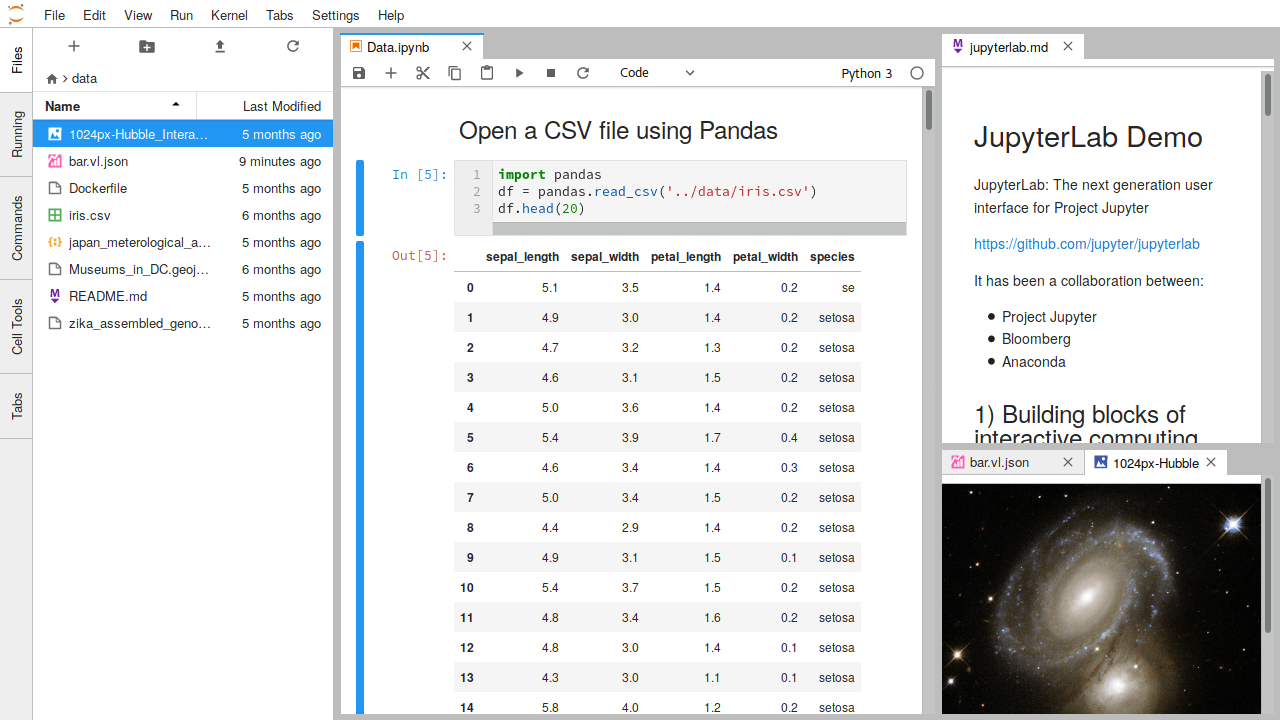
3.1. Introduction to Jupyterlab and programming languages kernels
Starting from Jupyter notebook, it is a web-based interface that can execute and edit code, contains text, images, tables etc.
Notebooks: document-like view rendered by modern browser
Kernels interpret, execute cell contains
Support over 50 programming languages
Designed as modular, extensible, interactive environment
3.2. Jupyterlab extensions
- Extensions allow users and developers to:
create new editors, output visualization
extend existing functionalities
provide API for other extensions to users
Given that the core extensions are limited in scope, JUpyterlab offers the capacity to create a customized environment
3.3. Overview of CropMstudio
- The CropMStudio kernels
Taking into account the languages used by the international crop modeling platforms and the interest of R language, CropMStudio povides 6 languages kernels that allows to execute the generated notebooks or other in these languages.
- AppLaunch notebook
After launching CropMStudio by binder or by one of the two other procedures, you access to jupyterlab environment with different kernels and one notebook named AppLaunch is loaded in the files explorer.
- Access to the model lifecycle management interface
Double-click on the AppLaunch notebook to open it. Execute the code cell by clicking on it and pressing CTRL+ENTER (or click on Run on the notebook toolbar)
The role of each Each widget represents the functionalities of CropMStudio offering modelers to handle Crop2ML models and their lifecycle
